6:00–22:00
Book online 24/7
You can book Self Car Wash 1on1 via Official LINE or on the web.
Choose whichever suits you best.
Official LINE accounts and booking URLs differ by location. Please make sure you choose the correct location.
We explain how to book on Official LINE and on the web, with videos.
Book through the Official LINE flow. Handy if you already use LINE.
Your booking details arrive in the LINE chat, so they are not affected by email filters or how your mail app displays messages — and the unlock code is easy to find.
Choose your date and time on the よやクルPro booking page.
Each location has its own Official LINE and booking URL. Please use the buttons for the location you are visiting.
Official LINE accounts and booking URLs differ by location. Please make sure you choose the correct location.
Watch the LINE version and the web version on video.
A video walkthrough of booking on Official LINE.
A video walkthrough of booking on the web.
Check the booking steps for LINE and for the web.
In the "Choose your location" section on this page, tap the "Book on LINE" button for the location you are visiting to open our Official LINE account. If you have not added us as a friend yet, please do so.
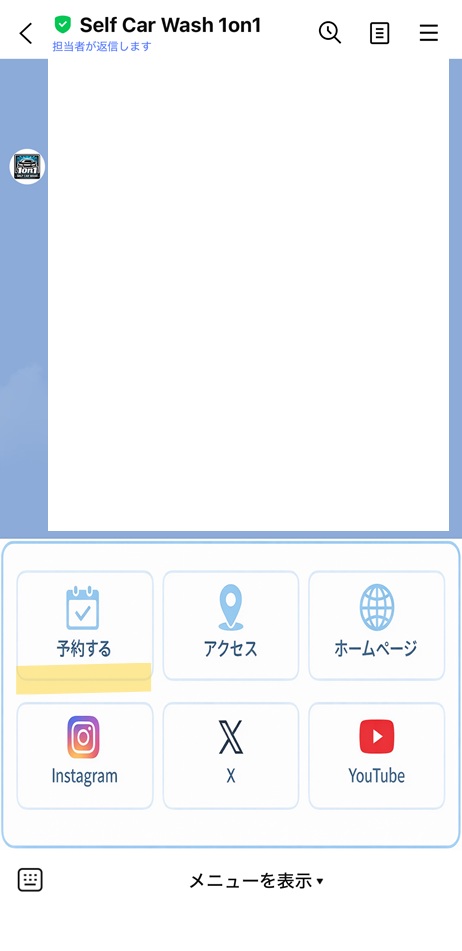
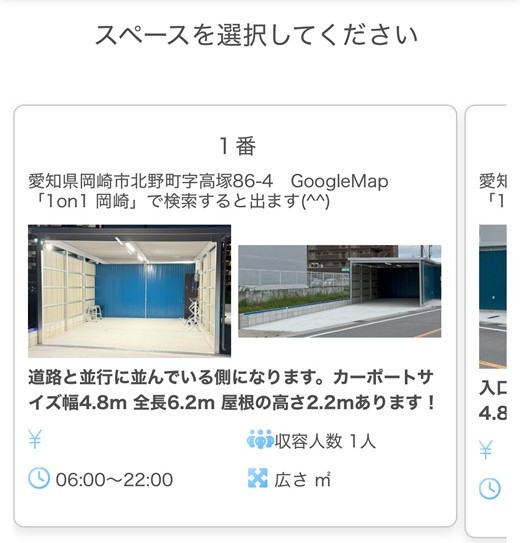
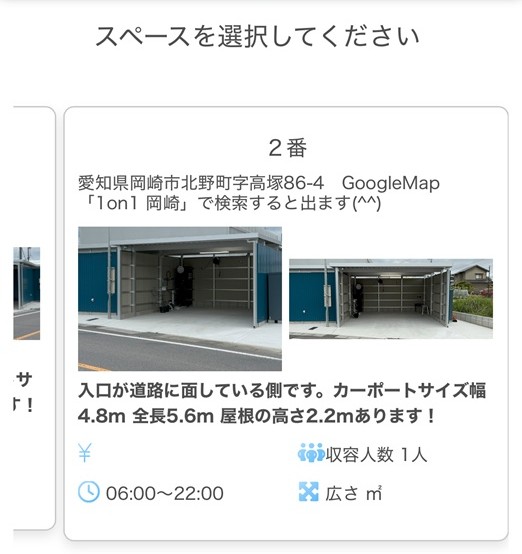
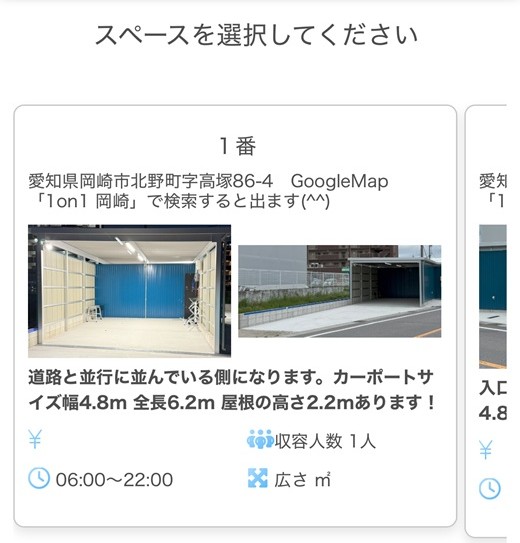
There are bays 1 and 2. Pick the one you want.
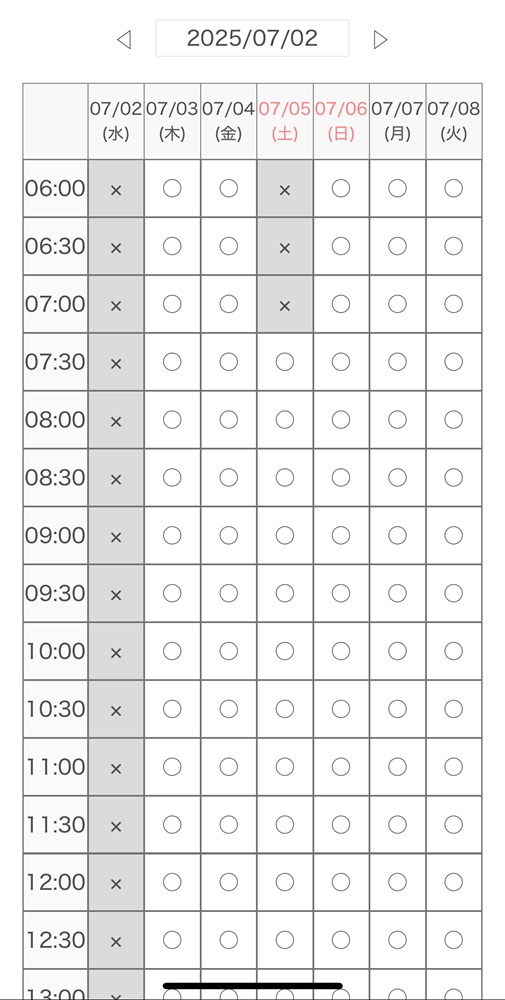
Pick an open slot from the calendar.
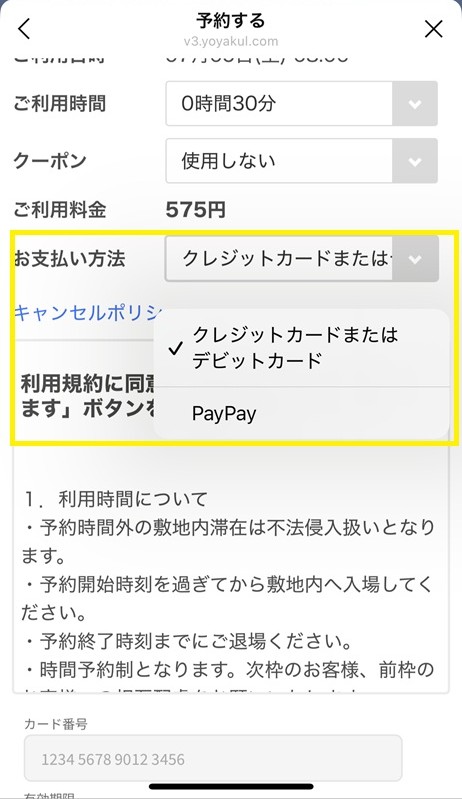
Pay by credit card or PayPay. With PayPay, you must return to the よやクルPro page after paying and confirm that your booking is complete.
Your booking is confirmed once you see the completion screen or receive the confirmation email. You can use the bay at your booked time.
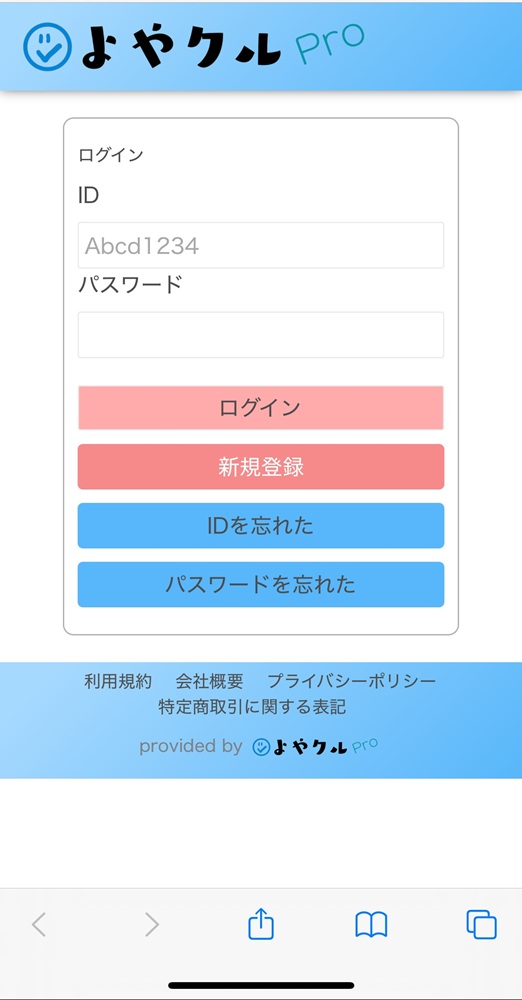
In the "Choose your location" section on this page, tap the "Book on the web" button for the location you are visiting to go to the booking page (よやクルPro). You will need to register an account the first time.
There are bays 1 and 2. Pick the one you want.
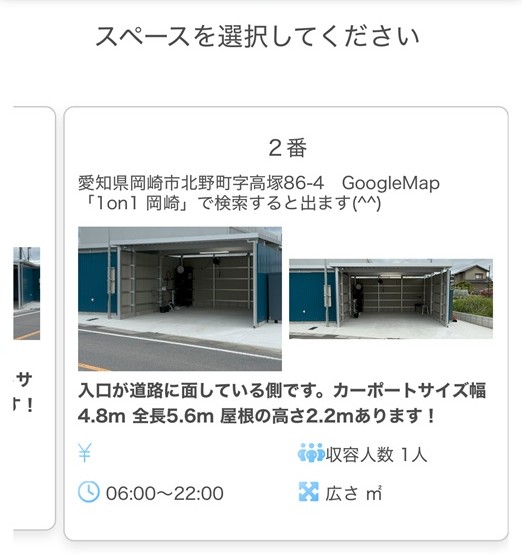
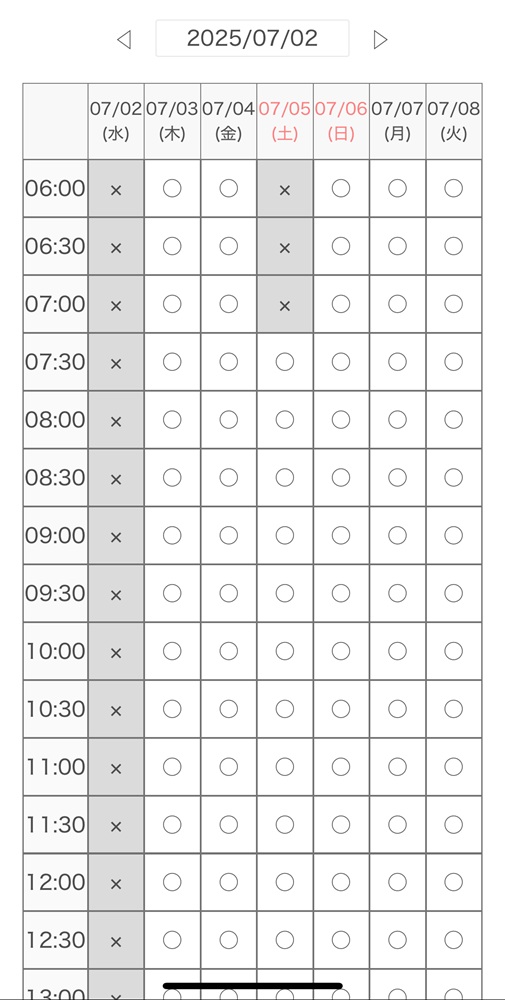
Pick an open slot from the calendar. Check the time and plan, then continue.
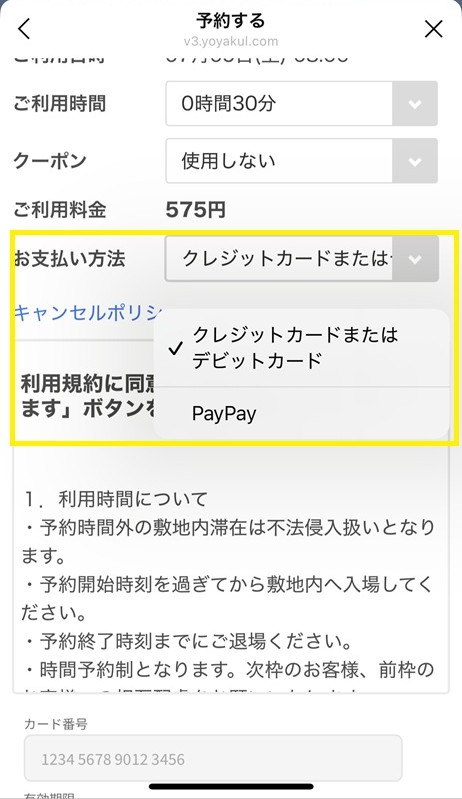
Pay by credit card or PayPay. With PayPay, you must return to the よやクルPro page after paying and confirm that your booking is complete.
Your booking is confirmed once you see the completion screen or receive the confirmation email. You can use the bay at your booked time.
Log in with the email address and password you registered when booking.
If you booked via LINE, open the booking screen as well.
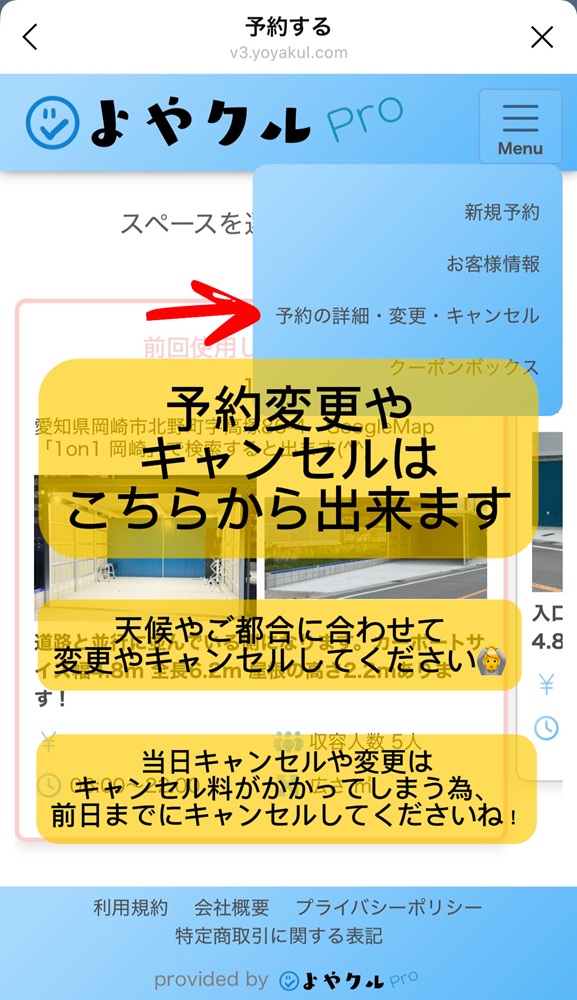
Tap the "Cancel" button on the booking details screen and complete the action on the confirmation screen.
After cancelling, you will get a notice by email or on LINE.
Once you finish booking, check the completion screen, the confirmation email, or the LINE message.
With PayPay, your booking is only complete after you return to よやクルPro, so please also read the notes on the payment page.
The "Check unlock code" button in your confirmation email may not appear or may not be tappable in some email apps. Try the steps below.
Before booking, please also check the payment methods and Terms of Use.